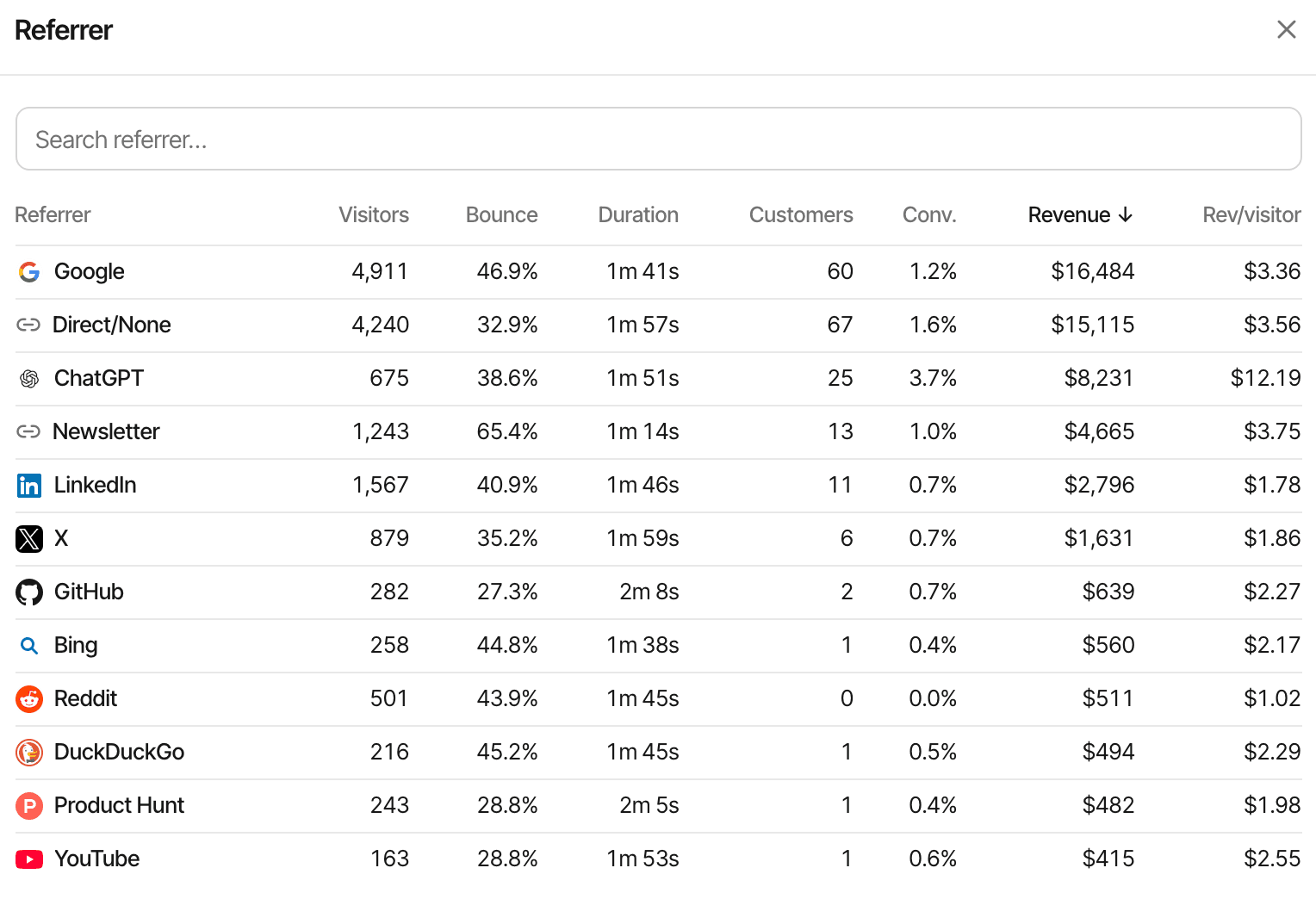
Dodo Payments shows you every payment. It doesn't show you which post, search or newsletter sent the customer. To see that, a visitor id from your website analytics has to ride along with the checkout and come back with the payment.
Dodo makes this short: its payment links accept metadata in the URL, so the id can be added without any code. This guide covers payment links and checkout sessions, the webhook that reports each payment, how renewals and refunds count, and where attribution can't find a source.
The quick answer
To attribute Dodo Payments revenue to traffic sources:
- Record each visit and its source with an analytics script on every page.
- Carry the visitor id into checkout. Dodo payment links get it automatically; checkout sessions take it as metadata.
- Add a Dodo webhook endpoint for
payment.succeededandrefund.succeeded. - Each payment is matched to the visitor, and your attribution model picks which of their visits gets the credit.
Why Dodo Payments alone can't tell you where customers came from
Dodo knows the payment: the product, the amount and its tax, the customer and their email, the subscription it belongs to and the checkout session it came from. It also keeps metadata, up to 50 key-value pairs on a payment, a subscription or a checkout session, and sends it in webhook payloads (Dodo: metadata (Dodo Payments documentation, opens in a new tab)).
What Dodo can't see is the visit before the checkout. If a customer read your post on Reddit, came back two days later through Google and clicked the same buy button, the payment looks the same either way. The referrer, the landing page and the earlier visits live in your website analytics, which has never seen the payment. Joining the two needs an id both sides share, and metadata is where it goes.
Step 1: Track website visitors and their sources
Add the SuprAnalytics script to the <head> of every page (installation guides). Each visit then records its referrer, its UTM tags, its landing page and a visitor id kept in a first-party cookie for a year. A visit with no referrer and no tags counts as Direct. The tracking parameters guide lists the tags it reads, and the Stripe guide explains sources and sessions in more depth; it all applies to Dodo too.
Step 2: Carry the visitor into Dodo checkout
Payment links: nothing to add
A Dodo payment link looks like https://checkout.dodopayments.com/buy/pdt_…. Dodo reads query parameters on it, and any parameter that starts with metadata_ becomes a custom metadata field on the payment (Dodo: payment links (Dodo Payments documentation, opens in a new tab)). When a visitor clicks such a link, the SuprAnalytics script adds two of them before the browser follows it: metadata_supr_visitor_id with their visitor id, and metadata_supr_session_id with the id of the visit they're in.
<a href="https://checkout.dodopayments.com/buy/pdt_123">Buy now</a>
<!-- clicked: https://checkout.dodopayments.com/buy/pdt_123?metadata_supr_visitor_id=6f1c…&metadata_supr_session_id=a83d… -->- The ids are set at the click, so links added to the page later are covered too.
- The visit's id comes along, so the payment is credited to the exact visit the link was clicked in.
- A link that already has
metadata_supr_visitor_idis left alone. - To stop the script changing Dodo links, add
supr-dodo="false"to the SuprAnalytics script tag. It applies to every link on the page. - Only links on checkout.dodopayments.com whose path starts with
/buy/are changed.
Checkout sessions: pass the id as metadata
If your server creates the checkout session, read the supr_visitor_id cookie from the request and put it in the session's metadata. supr_session_id is optional and credits the payment to that exact visit. The payment the session produces carries the metadata, and the webhook brings it back.
import DodoPayments from "dodopayments";

const dodo = new DodoPayments({ bearerToken: process.env.DODO_PAYMENTS_API_KEY });

const session = await dodo.checkoutSessions.create({
  product_cart: [{ product_id: "pdt_123", quantity: 1 }],
  return_url: "https://yourdomain.com/thanks",
  metadata: {
    supr_visitor_id: req.cookies.supr_visitor_id,
    supr_session_id: req.cookies.supr_session_id,
  },
});
res.redirect(303, session.checkout_url);
Runs on your server; the API key never goes in browser code. req.cookies is Express with cookie-parser. The rest of the setup is in the Dodo Payments guide.
SuprAnalytics reads the payment's metadata first and the customer's metadata after it, so a visitor id you keep on the Dodo customer works as well.
When there's no id: customer id and email
A payment without a visitor id still counts. SuprAnalytics then looks for the Dodo customer id on an earlier payment that was matched, then a visitor with the same email, known from an earlier payment or from the identify call your app makes at sign-up. If nothing matches, the payment is revenue without a source.
Step 3: Connect the Dodo Payments webhook
The connection is one webhook endpoint per website and its signing key. There's no API key to share, and past payments aren't imported: SuprAnalytics records payments from the moment the webhook is set up.
Copy your webhook URL
In SuprAnalytics, open the website's Settings → Revenue, pick Dodo Payments, and copy the URL. It looks like
https://supranalytics.app/api/webhooks/dodo/YOUR_WEBSITE_ID.Add an endpoint in Dodo
In the Dodo Payments dashboard, open Developer → Webhooks and click Add endpoint. Paste the URL (Dodo: webhooks (Dodo Payments documentation, opens in a new tab)).
Select two events
Select
payment.succeededandrefund.succeeded.Paste the signing key
Copy the endpoint's signing key, which starts with
whsec_, into Settings → Revenue with Dodo Payments selected, and click Connect.
| Dodo event | What SuprAnalytics does |
|---|---|
payment.succeeded | What SuprAnalytics does: Records the payment. Dodo sends it for one-time payments and for every subscription charge, alongside subscription.renewed on renewals (Dodo: subscriptions (Dodo Payments documentation, opens in a new tab)). Payments that aren't succeeded, payment-method updates and free payments are skipped. |
refund.succeeded | What SuprAnalytics does: Marks the payment refunded, or lowers its amount for a partial refund (Dodo: webhook events (Dodo Payments documentation, opens in a new tab)). |
What happens on every delivery
- Signature check. Dodo follows the Standard Webhooks specification and signs each delivery with the
webhook-id,webhook-timestampandwebhook-signatureheaders. SuprAnalytics checks the signature against your signing key and refuses a timestamp more than 5 minutes off. A wrong key is answered with 401 "Invalid signature" and nothing is recorded. - Retries. Dodo makes up to 8 attempts in all: one at once, then retries after 5 seconds, 5 minutes, 30 minutes, 2 hours, 5 hours, 10 hours and 10 hours. Any answer other than 2xx counts as a failure.
- Duplicates. Each payment is stored once, and each refund is applied once by its id, so a delivery that arrives twice doesn't count twice.
Step 4: Test in Dodo's test mode
Dodo has a test mode (Dodo Payments documentation, opens in a new tab) with its own API keys, products and webhooks, where no money moves. Test there; never make a real purchase just to test attribution.
- In test mode, add an endpoint for the test website's URL with the two events, and paste its signing key into that website's Settings → Revenue.
- Open your staging site in a fresh window with a tagged link, such as
?utm_source=test&utm_medium=email&utm_campaign=attribution_check. - Click your payment link (or start your checkout session) and pay with a test card, such as 4242 4242 4242 4242.
- In Dodo, open the endpoint's delivery logs. The payment's delivery should show status 200; where the response is shown, look for
"attributed": true. - In SuprAnalytics, the payment appears in the visitor's journey and the Campaign report credits
attribution_check.
{
  "received": true,
  "result": { "visitorId": "…", "attributed": true, "duplicate": false }
}
"attributed": false means the payment was recorded without a source: check that the checkout carried the visitor id. A retried delivery answers "duplicate": true.
When it works, add an endpoint in live mode for your real website, with its own signing key.
What Dodo Payments revenue SuprAnalytics counts
| Payment | How it's counted |
|---|---|
| Amount | How it's counted: The payment's total_amount less its tax: after discounts, before tax. Dodo's total_amount is the amount charged including tax (Dodo: the payment object (Dodo Payments documentation, opens in a new tab)), and Dodo is the merchant of record that remits it (Dodo: merchant of record (Dodo Payments documentation, opens in a new tab)), so tax isn't your revenue. Amounts are converted from the currency's smallest unit, zero- and three-decimal currencies included, and payments in other currencies are converted to your website's currency with daily rates. |
| First payment | How it's counted: A one-time payment, or a subscription's first charge through a checkout session. Counts toward new customers, conversion rate and revenue. |
| Renewal | How it's counted: A subscription charge that didn't come through a checkout session, or a later charge of a subscription SuprAnalytics has already recorded. Revenue, but not a new customer. Credited to the same visitor through the payment's or customer's metadata, or the Dodo customer id of an earlier matched payment. |
| Payment-method update | How it's counted: Skipped: it isn't a sale. |
| Free payment | How it's counted: Skipped: there's no revenue to attribute. |
| Full refund | How it's counted: Marks the payment refunded; it drops out of revenue. |
| Partial refund | How it's counted: Lowers the payment by its pre-tax share. Dodo refunds include tax (Dodo: refunds (Dodo Payments documentation, opens in a new tab)), so a $29.50 refund of a $59 payment with $10 of tax lowers its $49 by $24.50, to $24.50. Each refund is applied once; a refund that arrives before its payment is applied when the payment's delivery lists it. |
So SuprAnalytics totals won't match Dodo figures that include tax. Payment tracking also isn't subscription analytics: SuprAnalytics doesn't calculate MRR, ARR or churn. What it adds is where paying and renewing customers came from (subscription revenue).
First touch or last touch?
Each payment keeps two visits: the visitor's first visit ever and their last visit before paying. Last touch is the default and credits the visit that converted, even a direct one. With a tagged payment link, that is the visit the link was clicked in. First touch credits the visit that brought them in. Change it in Settings → Revenue → Attribution model; the switch re-credits past payments too. The first-touch vs last-touch guide works through examples.
Common Dodo Payments attribution problems
| Problem | Likely cause and fix |
|---|---|
| No Dodo payments show up | Likely cause and fix: Open the endpoint's delivery logs in Dodo. 400 "Dodo Payments is not configured for this website" means no signing key is saved for that website; 401 "Invalid signature" means the key belongs to another endpoint, or test mode and live mode are mixed up. |
| Payments have no source | Likely cause and fix: The checkout carried no visitor id. Check that the script runs on the page with the payment link, or that your server passes the metadata, and identify signed-in users before checkout. |
| A payment link isn't tagged | Likely cause and fix: It already has metadata_supr_visitor_id, the script tag carries supr-dodo="false", the link isn't a checkout.dodopayments.com/buy/ link, or the click happened before the script loaded. |
| Too much Direct revenue | Likely cause and fix: Untagged links, apps that drop the referrer, or last touch crediting direct returns. Tag the links you share, or compare with first touch. |
| Revenue lower than in Dodo | Likely cause and fix: SuprAnalytics counts the amount before tax, lowers partial refunds by their pre-tax share and skips free payments. |
More on this: Dodo Payments revenue attribution · Dodo Payments setup guide · Renewals and refunds · How revenue attribution works · Pricing